
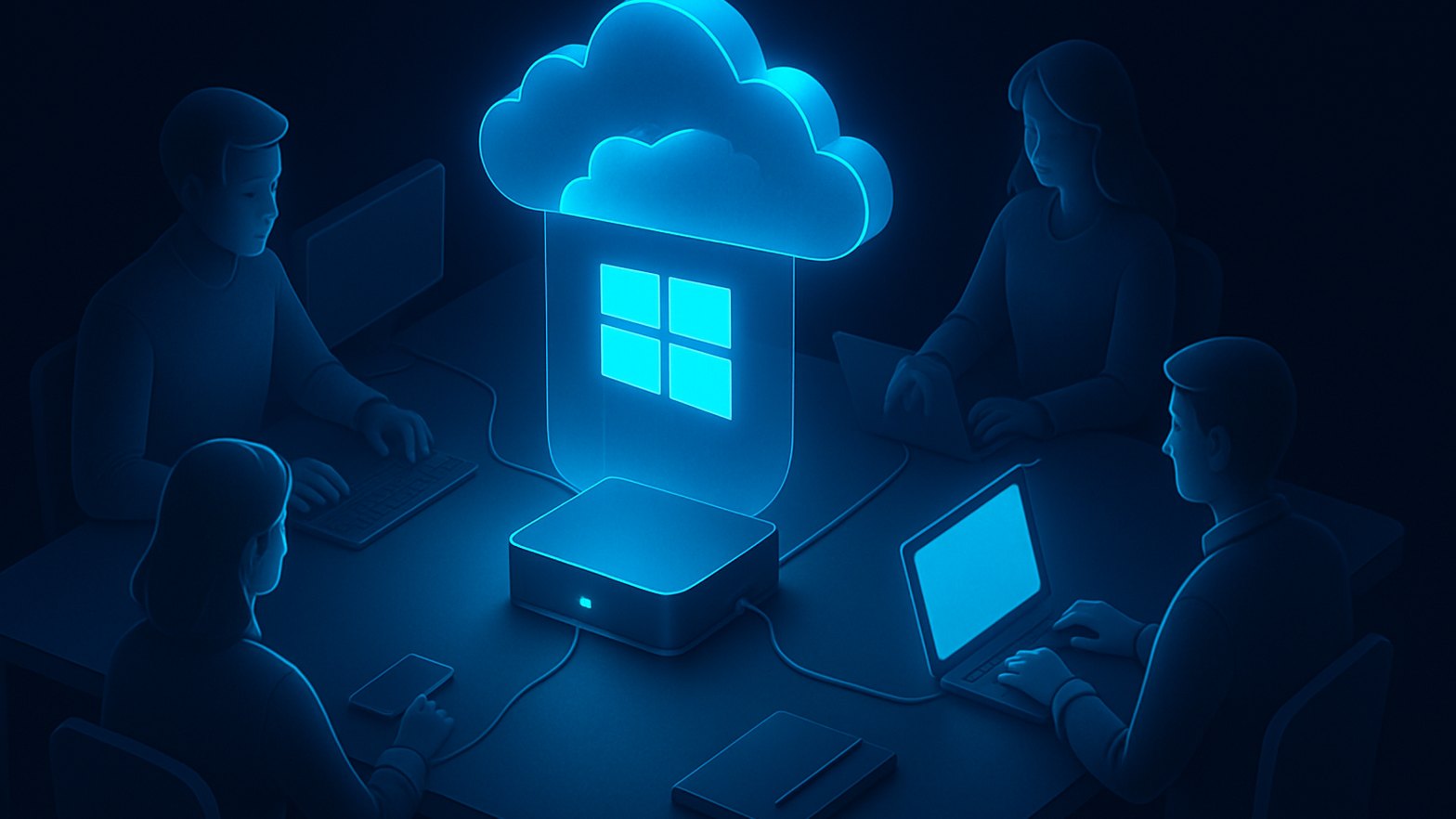
Windows 10 support has ended, and many IT teams now face the same old choice. They can replace aging hardware, force unsupported devices onto Windows 11, or look for a better approach. In real environments I regularly come across organizations with large fleets of Windows 10 laptops and desktops. These devices still work, but they either aren't worth another upgrade cycle or simply can't run Windows 11. This is where the Windows 365 Cloud PC fits well. You don't buy new hardware. Instead, you deliver a modern, secure Windows 11 experience to almost any device, including old laptops and thin clients. You manage the Cloud PC with Intune (Devices → Windows 365), and Conditional Access works the same way it does for traditional endpoints.
Cloud PCs can replace hardware in many real scenarios
Many businesses want to postpone or avoid large device refreshes. Hardware is expensive, rollouts disrupt people's work, and sustainability matters more every year. If the unsupported OS is the only real problem, running a full desktop in the cloud makes sense. A Windows 365 Cloud PC is persistent, always up to date, and reachable from anything with a browser or the Windows 365 app. That makes it a good match for BYOD, contractors and loaner devices. Because it integrates with Intune, app deployment, patching and compliance policies run just as they do on physical devices. If you're looking into licensing, cost or cloud-only setups, start with the official Windows 365 overview and my guide to Azure Virtual Desktop security, or read my post on Windows 10 end of support and ESU.
Windows 365 Link turns devices into dedicated Cloud PC terminals for shared and frontline use
Windows 365 Link has been generally available since spring 2025, and it's a big step forward. With Link, lightweight software turns an existing device (often an older PC or thin client) into a dedicated terminal for a user's Cloud PC. The process is simple. Users sign in, often with a QR code, work in their persistent Cloud PC, and when they finish, the local device is wiped for the next session. I like this option a lot for shared desks, call centers and frontline sites where several people use the same physical hardware. For shared or shift-based work, have a look at Windows 365 Frontline licensing. It lets you assign a pool of Cloud PCs to groups of users, typically at a 3:1 user-to-PC ratio. If people work in shifts and don't need a dedicated Cloud PC all the time, this saves money.
The network model decides between Microsoft-hosted and Azure-connected Cloud PCs
The network model is one of the main architecture decisions. Windows 365 Cloud PCs can run on a Microsoft-hosted network, which is ideal if you don't want to maintain your own Azure network. For more advanced cases you can use an Azure network connection instead. This joins Cloud PCs to your corporate network through Azure VNETs, so you can meet specific security, compliance or routing requirements. In Intune (Devices → Windows 365) you can see which Cloud PCs use which network and roll out policies and updates as usual. If you're comparing this with Azure Virtual Desktop, look carefully at the differences in cost, flexibility and management effort.
The diagram below shows the main components and access paths for context:
flowchart TD
Endpoint["Old device/thin client"] --> Link["Windows 365 Link"]
Link --> CloudPC["Windows 365 Cloud PC"]
CloudPC --> Network["Microsoft/Corporate network"]
CloudPC --> Intune["Intune management"]
CloudPC --> CA["Conditional Access"]
Figure: Windows 365 Link workflow from the endpoint through to Cloud PC access and management.
Windows 365 Link connects legacy hardware to secure, modern Cloud PCs, and management, networking and security controls stay in place just as they would for a regular endpoint.
Conditional Access makes the real difference for security
With Windows 365 Cloud PC, the desktop gets the full set of Conditional Access and Zero Trust capabilities. Since January 2025 you can target the Windows 365 app with Conditional Access policies (location, MFA, device compliance and more), the same as any other cloud application. In many tenants I've watched organizations copy their existing on-prem Conditional Access rules for Cloud PC sign-ins, which made the switch almost painless. In particularly sensitive environments you can limit Cloud PC access to company networks or compliant devices only.
Pro tip: Use Intune (Devices → Windows 365 → Device settings) to assign granular compliance policies. That way even old devices running Link stay under tight control, and Cloud PC access can be blocked if a device is non-compliant.
If you want to go further with Conditional Access, read my article Conditional Access in Entra ID: The First Policies Every Tenant Needs.
Costs and licensing differ clearly from Azure Virtual Desktop
Most people want to know what it costs and how Windows 365 Cloud PC compares to Azure Virtual Desktop (AVD). There's no single answer, but this is what I see in practice:
- Windows 365 pricing is transparent and predictable, charged per user and per Cloud PC with infrastructure included. Budgeting gets easier, especially for SMBs.
- AVD can be cheaper if you optimize resource usage. In return it needs far more management, Azure know-how, a VNET setup, and pay-as-you-go billing for compute, storage and licensing.
- For always-on personal desktops, Windows 365 is usually more cost-effective and easier to run.
- AVD offers more flexibility for pooled, session-based or specialized app hosting.
- Always check against your real usage profiles, because neither option wins everywhere.
My verdict is that Cloud PCs are future-proof but need careful planning
Windows 365 Cloud PC won't solve everything, but it gives you a real answer to the hardware and OS lifecycle pressure after the Windows 10 end of support. Between Windows 365 Link and Frontline, almost every workplace scenario is covered, whether shared, hybrid or frontline. If you still run Windows 10, now is the time to review ESU (Extended Security Updates) alongside alternatives such as Cloud PCs. My post on Windows 10 end of support: One year left is a good place to start. For a secure Cloud Desktop deployment, pay close attention to network design, access controls and total cost. If you get those right, Windows 365 gives your modern endpoint strategy a solid foundation.
